Most Popular Themes
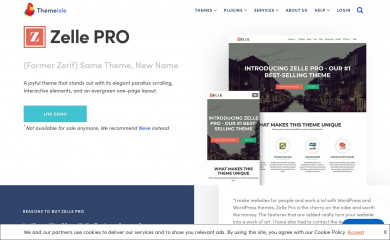
Zerif PRO | Shared by Themes24x7.com
Found on 24 websites
Zerif PRO is a modern responsive WordPress Theme. It's perfect for web agencies, digital studios, co...
Divi - Child Theme
Found on 24 websites
Smart. Flexible. Beautiful. Divi is the most powerful theme in our collection.Divi - Hijo
Found on 18 websites
Añade al personalizador de Divi la opción para editar los créditos del pie de página.Divi | Shared By VestaThemes.com
Found on 18 websites
Smart. Flexible. Beautiful. Divi is the most powerful theme in our collection.
Lovecraft - WordPress.com
Found on 12 websites
Lovecraft is a beautiful two-column theme for bloggers. It features a responsive design, great typog...Divi - Child
Found on 11 websites
Smart. Flexible. Beautiful. Divi is the most powerful theme in our collection.Wordpress Theme Detection
If you're looking at a WordPress site, the chances are you can find the theme being used.
What is a WordPress theme?
First things first, let's cover what a WP theme is. The theme of a WordPress site will influence (but not dictate) how visitors see the site. Themes include the resources and functionality that will determine the overall colors, presentation, layout and design of the website. The fact that themes can do so much also means there's a wide range of options. Some themes will have preset color schemes, some will have multiple color schemes to choose from, and some will let you customize the color scheme. The possibilities are truly endless.How can you tell what theme a WordPress site is using?
The manual method for finding the theme is to look in the source code of the webpage.- First, locate a css file within the /wp-content/ directory. Something like this:
<link href="http://example.com/wp-content/themes/themename/some-file-name.css" /> - Then, replace the last part of the css file's url (right after "themename") with "style.css". For our example, our the url is:
http://example.com/wp-content/themes/themename/some-file-name.css - Now, enter this url into your browser and load the css file. At the top of the page, you'll see details of the theme being used including theme name, description, version, and author.
The oddities and exceptions:
You might find multiple themes on a page (usually a parent & child theme).
There might be a <script> for the url instead of a <link> tag.
The style.css might not have any information.
You might find multiple themes on a page (usually a parent & child theme).
There might be a <script> for the url instead of a <link> tag.
The style.css might not have any information.
Recently Detected Themes
| Url | Theme | Version | |
|---|---|---|---|
| firstohiohome.com | Avada Child | 1.0.0 | |
| www.here-still.art | Enfold | 7.1.5 | |
| www.tienoerfood.com | Lapax | 3.0.2 | |
| rotteninterest.s6-tastewp.com | Kadence | 1.5.2 | |
| shopquadra.com/main-graphic-tee-club/ | Quadra - ShopQuadra.com | 1.0.0 | |
| ada-pharmacy.com | Beaver Builder Child Theme | 1.0 | |
| grafika-vero.cz | Kadence | 1.2.24 | |
| mikrolab.gr | BeThree Child | 1.0.1789903056 | |
| www.indigokwest.com | Opal Pro | 3.0 | |
| www.veronadministratiekantoor.nl | Veron Administratiekantoor | 3.15.0 | |
| www.tammoseholm.dk | Upsurge | 5.4.6 | |
| hookahua.org | Hello Elementor | 3.5.1 |