Most Popular Themes
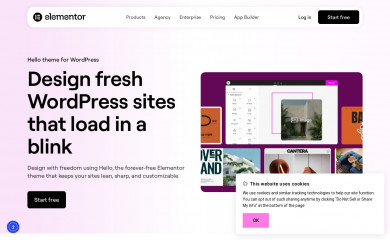
Hello Elementor
Found on 470,866 websites
A plain-vanilla & lightweight theme for Elementor page builder
Astra
Found on 440,486 websites
Astra is fast, fully customizable & beautiful WordPress theme suitable for blog, personal portfolio,...
Avada
Found on 164,237 websites
The #1 selling theme of all time that allows you to build virtually any design style.
Enfold
Found on 95,796 websites
A superflexible and responsive Business Theme by Kriesi - Update notifications available on twitter...
Hello Elementor Child
Found on 79,762 websites
Hello Elementor Child is a child theme of Hello Elementor, created by Elementor teamAstra Child
Found on 32,403 websites
Astra is fast, fully customizable & beautiful WordPress theme suitable for blog, personal portfo...Wordpress Theme Detection
If you're looking at a WordPress site, the chances are you can find the theme being used.
What is a WordPress theme?
First things first, let's cover what a WP theme is. The theme of a WordPress site will influence (but not dictate) how visitors see the site. Themes include the resources and functionality that will determine the overall colors, presentation, layout and design of the website. The fact that themes can do so much also means there's a wide range of options. Some themes will have preset color schemes, some will have multiple color schemes to choose from, and some will let you customize the color scheme. The possibilities are truly endless.How can you tell what theme a WordPress site is using?
The manual method for finding the theme is to look in the source code of the webpage.- First, locate a css file within the /wp-content/ directory. Something like this:
<link href="http://example.com/wp-content/themes/themename/some-file-name.css" /> - Then, replace the last part of the css file's url (right after "themename") with "style.css". For our example, our the url is:
http://example.com/wp-content/themes/themename/some-file-name.css - Now, enter this url into your browser and load the css file. At the top of the page, you'll see details of the theme being used including theme name, description, version, and author.
The oddities and exceptions:
You might find multiple themes on a page (usually a parent & child theme).
There might be a <script> for the url instead of a <link> tag.
The style.css might not have any information.
You might find multiple themes on a page (usually a parent & child theme).
There might be a <script> for the url instead of a <link> tag.
The style.css might not have any information.
Recently Detected Themes
| Url | Theme | Version | |
|---|---|---|---|
| www.ninatantzen.com | ProPhoto 8 | 8 | |
| veilbook.com | Hello Elementor | 3.4.9 | |
| asianagrandhall.com | Kadence | 1.5.2 | |
| argentinskfodbold.dk | ColorMag | 4.2.5 | |
| grandsal.pl | Agencja Marketingowa Brand new Brand | ||
| aseurbangroup.com.co | Urban Oasis | 1.4 | |
| www.yeppis.fi | Yeppis | 1.3 | |
| defavoritestores.com | Twenty Twenty-Two | 2.0 | |
| www.uitinzuidwest.be | City Girl | 1.0.1 | |
| finderupefterskole.dk | Lionlab Theme | 1.6.19 | |
| www.caw.be | CAW 2024 | 2.0 | |
| giardinobenessere.com | Giardinobenessere Child | 1.0 |